How to Convert PDF to PNG Online - Complete Guide for High-Quality Image Conversion
 Author: Michael Chen
Content
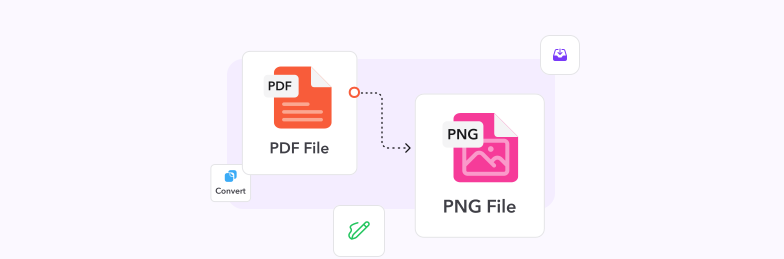
To save PDF pages as PNG images:
- Open the Profi PDF PDF to PNG converter.
- Upload your PDF.
- Download the PNG images.
PNG keeps text and line art sharp. For photos, or when file size matters more, PDF to JPG gives smaller files: see the PDF to JPG guide.
Understanding PDF to PNG Conversion: Why and When You Need It
Before exploring conversion methods, it's essential to understand when PDF to PNG conversion becomes necessary and the advantages each format offers for different use cases.
Key Differences: PDF vs PNG
- PDF (Portable Document Format): Ideal for documents with text, graphics, and complex layouts
- PNG (Portable Network Graphics): Perfect for high-quality images with transparency support
- File structure: PDFs maintain document integrity; PNGs focus on image clarity
- Compatibility: PNGs work universally across all platforms and applications
Common Conversion Scenarios
- Web publishing: Converting PDF pages to web-friendly PNG images
- Social media sharing: Creating visual content from document pages
- Presentation materials: Extracting diagrams and charts as standalone images
- Archive purposes: Preserving document visuals in accessible image format
- Graphic design: Using PDF content as source material for design projects
Professional insight: PNG's lossless compression ensures your converted images maintain crisp text and sharp graphics, making it the preferred choice for high-quality document visualization.
Method 1: Professional PDF to PNG Conversion with Profi PDF
Profi PDF offers advanced PDF to PNG conversion technology that delivers exceptional results with professional-grade quality and precision:
- Open the converter: Go to the Profi PDF PDF to PNG converter
- Upload your PDF document: Drag and drop or browse to select your file
- Configure quality settings: Choose resolution and compression preferences
- Select page range: Convert all pages or specify particular pages
- Initiate conversion: Process your document with optimized algorithms
- Download PNG files: Get your high-quality converted images instantly
Advanced Conversion Features
- High-resolution output: Generate images up to 300 DPI for professional quality
- Batch processing: Convert multiple PDF files simultaneously
- Page selection: Extract specific pages or convert entire documents
- Transparency preservation: Maintain transparent backgrounds where applicable
- Color accuracy: Preserve original color profiles and gradients
- Size optimization: Balance quality with file size for different use cases
Best for: Professional documents, marketing materials, and situations requiring consistent high-quality output with reliable results.
Convert PDF to PNG Online
Transform your PDF documents into high-quality PNG images instantly. Maintain clarity, preserve details, and get professional results in seconds.
Start Converting Now



Alternative Solution: PDF to JPG Conversion
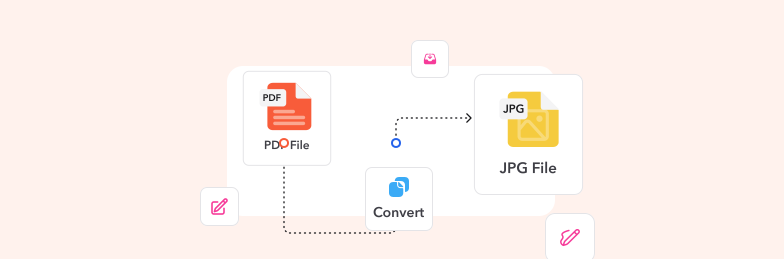
While PNG offers lossless quality, JPG conversion provides smaller file sizes that are ideal for web use, email sharing, and storage optimization. See the PDF to JPG guide for details:
When to Choose JPG Over PNG
- Web optimization: Faster loading times for websites and online galleries
- Email attachments: Smaller files that meet email size restrictions
- Storage efficiency: Reduced storage requirements for large document archives
- Social media: Optimized format for most social platforms
Quality vs Size Considerations
- PNG advantages: Lossless compression, transparency support, crisp text
- JPG advantages: Smaller file sizes, universal compatibility, faster processing
- Use case matching: Choose based on your specific requirements and priorities
Pro tip: For documents containing mostly text and graphics, PNG maintains superior quality. For photo-heavy documents or when file size matters most, JPG offers the perfect balance.
Quality Optimization Tips for Perfect Conversions
Achieving optimal results requires understanding key factors that influence conversion quality and implementing best practices throughout the process.
Pre-Conversion Preparation
- Source quality assessment: Ensure your original PDF has adequate resolution
- Content analysis: Identify text-heavy vs image-heavy pages for format selection
- File size evaluation: Consider output requirements and usage scenarios
- Color profile verification: Check for special colors or transparency needs
Conversion Settings Optimization
- Resolution settings: Use 300 DPI for print quality, 150 DPI for web use
- Color mode selection: RGB for digital use, CMYK for print materials
- Compression balance: Adjust quality vs file size based on requirements
- Page handling: Process individual pages for better control and quality
Post-Conversion Quality Check
- Text clarity verification: Ensure all text remains readable and sharp
- Image integrity check: Confirm graphics and photos maintain quality
- Color accuracy review: Compare with original for color consistency
- File size validation: Verify output meets your size requirements
Quality assurance: Professional conversion tools like Profi PDF automatically optimize these settings, but understanding these factors helps you achieve the best possible results.
Try PDF to JPG Conversion
Need smaller file sizes? Convert your PDFs to optimized JPG images with excellent quality and reduced file sizes perfect for web use.
Convert to JPGTroubleshooting Common Conversion Issues
Even with professional tools, certain challenges can arise during PDF to PNG conversion. Understanding common issues and their solutions ensures consistent, high-quality results.
Image Quality Problems
- Blurry text: Increase resolution settings or check source PDF quality
- Color distortion: Verify color profile compatibility and conversion settings
- Missing elements: Ensure all fonts and resources are embedded in the original PDF
- Pixelated graphics: Use higher DPI settings or check source image resolution
File Size and Performance Issues
- Large output files: Adjust compression settings or consider JPG format
- Slow conversion: Process pages individually or reduce resolution temporarily
- Memory limitations: Split large documents into smaller sections
- Browser timeouts: Use dedicated conversion tools for large files
Format-Specific Challenges
- Transparency issues: PNG supports transparency; JPG converts to white background
- Complex layouts: Vector graphics may require higher resolution for clarity
- Multi-page handling: Decide between single images or separate files per page
- Font rendering: Some fonts may render differently in image format
Expert recommendation: Professional conversion services like Profi PDF automatically handle most of these issues, providing consistent results with minimal manual intervention.
Try Our PDF Editing Tool Now
Edit text, add signatures, convert, highlight content, and make quick changes to any PDF.
Start Converting Now 4,61.340 beoordelingen4,513.920 beoordelingen4,64.550 beoordelingen
Gerelateerde artikelen
Ontdek meer tips, tools en handleidingen om slimmer met PDF's te werken.
How To Convert a Scanned PDF to Word Online - Complete Guide
Transform scanned PDF documents into fully editable Word files using advanced OCR technology. Learn the best methods, troubleshooting tips, and professional solutions for perfect conversions.
Translate Documents from French to English: Complete Professional Guide
Master the art of translating French documents to English with precision and efficiency. Discover professional methods, formatting preservation techniques, and AI-powered solutions for seamless multilingual document conversion.
How to Convert a PPTX to PDF Online: Complete Guide
Master the art of converting PowerPoint presentations to PDF format online. Discover professional methods, optimization techniques, and expert tips for seamless document sharing and preservation.