PDF to JPG Guide to the Best Converters
 Author: Michael Chen
Content
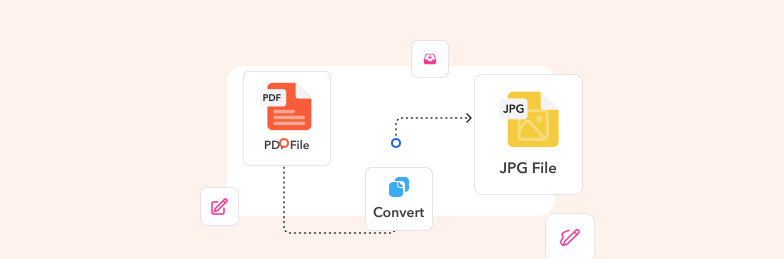
To save PDF pages as JPG images:
- Open the Profi PDF PDF to JPG converter.
- Upload your PDF.
- Download the JPG images.
On a Mac, Preview can also export the current page as a JPEG (File > Export). Below: how to pick the right resolution for web or print, desktop alternatives, and fixes for blurry output. If your pages are mostly text or diagrams, PNG keeps them sharper.
Why Converting PDF to JPG Matters
Understanding when and why to convert PDFs to JPG format helps you work more efficiently and ensures your content reaches the widest possible audience.
Universal Compatibility Benefits
- Instant viewing: JPG images open on any device without specialized software or PDF readers
- Mobile-friendly: Perfect for smartphones and tablets where PDF apps may not be available
- Web optimization: Easier to embed in websites, blog posts, and online portfolios
- Legacy system support: Works seamlessly with older devices and operating systems
Practical Use Cases
- Social media sharing: Platforms like Instagram, Twitter, and Facebook prefer image formats
- Email attachments: Smaller file sizes and immediate inline viewing without downloads
- Presentation integration: Insert directly into PowerPoint, Keynote, or Google Slides
- Document archiving: Create visual records that are easy to browse and preview
- Quick collaboration: Share visual information without requiring specific software
Key advantage: JPG conversion transforms static documents into versatile images that can be used across countless platforms and applications with zero compatibility concerns.
Professional PDF to JPG Conversion with Profi PDF

Profi PDF delivers professional-grade PDF to JPG conversion with advanced features designed for both casual users and professionals requiring high-quality results:
- Open the converter: Go to the Profi PDF PDF to JPG converter
- Upload your document: Drag and drop your PDF file or browse from your device
- Configure settings: Choose quality level, resolution, and output preferences
- Select conversion mode: Convert entire pages or extract specific images
- Process your file: Advanced algorithms ensure optimal quality and accuracy
- Download your JPGs: Get individual images or a convenient ZIP archive
Advanced Conversion Features
- Quality control: Adjust resolution and compression to balance file size with image clarity
- Batch processing: Convert multiple PDF pages simultaneously for efficiency
- Format options: Choose between JPG, PNG, or other image formats as needed
- Page selection: Extract specific pages rather than converting entire documents
- Privacy protection: Secure processing with automatic file deletion after conversion
Ideal for: Professional documents, high-quality image extraction, batch conversions, and situations requiring precise control over output quality.
Convert PDF to JPG Instantly
Transform your PDF documents into high-quality JPG images in seconds. Maintain perfect clarity, control resolution, and download images ready for any use.
Start Converting Free



Desktop Software Solutions for Offline Conversion
For users prioritizing privacy or working offline, desktop applications offer robust local processing capabilities without requiring internet connectivity.
Benefits of Desktop Converters
- Complete privacy: Files never leave your computer during conversion
- Offline functionality: Work anywhere without internet dependency
- Unlimited processing: No file size restrictions or daily conversion limits
- Speed advantages: Direct local processing often faster than uploads
- Bulk operations: Handle large document batches efficiently
Popular Desktop Solutions
Adobe Acrobat Pro DC: Industry-standard tool offering comprehensive features
- Export PDFs directly to JPG with customizable quality settings
- Advanced image extraction from embedded graphics
- Professional-grade output for commercial applications
- Integrated with other Adobe Creative Cloud tools
Lightweight Alternatives: Efficient tools for straightforward conversions
- Faster processing for routine conversion tasks
- Lower system requirements and resource consumption
- User-friendly interfaces perfect for beginners
- Often available as free or low-cost options
Consideration: While desktop tools offer privacy and speed, they require initial software installation and periodic updates to maintain optimal performance.
Optimizing Your PDF to JPG Conversions
Achieving optimal results requires understanding key settings and best practices that affect output quality and file usability.
Resolution and Quality Settings
Balancing quality with file size depends on your intended use:
- Web and social media (72-150 DPI): Lower resolution keeps files small for fast loading
- Professional presentations (150-300 DPI): Medium resolution balances clarity with practicality
- Print and archival (300+ DPI): High resolution preserves maximum detail and sharpness
- Mobile displays (150-200 DPI): Optimized for smartphone and tablet screens
Conversion Best Practices
- Preview before converting: Verify the PDF displays correctly to avoid issues
- Choose appropriate compression: Balance file size against required image quality
- Consider color mode: RGB for digital use, CMYK if printing converted images
- Test output files: Open converted JPGs to ensure they meet your requirements
- Maintain originals: Keep source PDFs as backups for future conversions
Common Conversion Challenges and Solutions
Blurry or pixelated output:
- Increase the DPI/resolution setting during conversion
- Ensure the source PDF has sufficient quality
- Try different conversion tools for comparison
Colors appear washed out or incorrect:
- Check color space settings (RGB vs CMYK)
- Verify the source PDF doesn't have color profile issues
- Adjust compression levels to reduce color distortion
File sizes too large:
- Reduce resolution to appropriate levels for your use case
- Increase compression while monitoring quality impact
- Consider converting to PNG for images with text (better compression)
Making the Right Choice: Selecting Your Ideal Converter
With countless conversion tools available, selecting the right solution depends on your specific requirements and how you plan to use converted images.
Decision Factors
Choose online converters when you need:
- Quick, occasional conversions without software installation
- Access from multiple devices or locations
- Latest features and automatic updates
- No local storage concerns
Choose desktop software when you need:
- Maximum privacy and data security
- Offline conversion capabilities
- High-volume or batch processing
- Advanced customization options
Choose mobile apps when you need:
- On-the-go conversion capabilities
- Direct integration with device cameras
- Quick sharing to messaging apps
- Casual, lightweight conversion tasks
Final Recommendations
For the best overall experience combining convenience, quality, and security, Profi PDF offers professional-grade PDF to JPG conversion with:
- Industry-leading conversion accuracy and quality
- Flexible options for all document types and sizes
- Strong privacy protections and secure processing
- Intuitive interface requiring no technical expertise
- Consistent results across all devices and platforms
Whether you're converting a single page or processing hundreds of documents, the right tool transforms what could be a tedious task into a simple, efficient workflow that saves time and maintains the quality your projects demand.
Try Our PDF Editing Tool Now
Edit text, add signatures, convert, highlight content, and make quick changes to any PDF.
Start Converting Free 4.61,340 reviews4.513,920 reviews4.64,550 reviews
Related articles
Explore more tips, tools and guides to help you work smarter with PDFs.
How to Translate a PDF into Another Language
Translate a PDF into another language and keep its layout. Step-by-step with Profi PDF, plus how to handle scanned and complex documents and check the translation.
How to Convert HEIC to PDF in Seconds: Complete Guide
Learn the fastest methods to convert Apple's HEIC image format to PDF documents. Step-by-step online, in Preview on a Mac and in the Windows Photos app.

How to Convert PDF to SVG: 4 Convenient Ways
Transform your PDF files into scalable SVG vectors with these 4 proven conversion methods. From professional tools to free alternatives, discover the best approach for your design workflow.