How to Merge PDF Files and Combine Images into One PDF
 Author: Michael Chen
Content
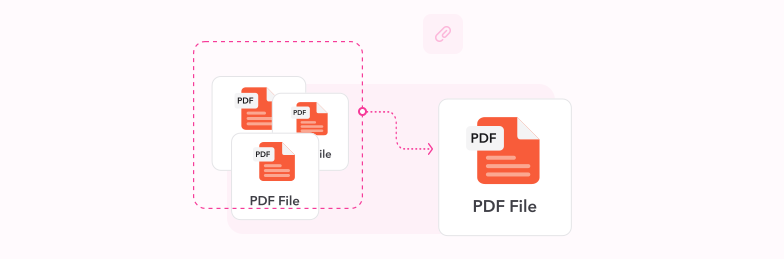
To merge PDFs into one file, upload them, put them in order and download a single PDF:
- Open the Profi PDF Merge PDF tool.
- Upload your PDFs. You can add JPG or PNG images too.
- Drag the files into the order you want.
- Merge them and download the combined PDF.
Below: how to merge in Preview on a Mac, what to use on Windows, how to include Word or PowerPoint files, and fixes for common merge problems. If the merged file is too big to send, see how to compress a PDF.
Method 1: Merge PDFs Online with Profi PDF
An online merger is the quickest option when you don't have PDF software installed, and it works the same on Windows, Mac, Linux and phones:
- Open the tool: Go to the Profi PDF Merge PDF tool
- Upload your files: Select your PDFs. JPG and PNG images can go in the same file, so you can combine scans, photos and PDFs
- Arrange the order: Drag the files into the order they should appear
- Merge and download: Get one PDF with all the pages
Best for: Quick tasks, occasional use, and when you don't have specialized software installed.
Merge PDFs Instantly
Combine multiple PDF documents into one professional file with our powerful online tool.
Start Merging Now



Method 2: Merge PDFs in Preview on a Mac

Every Mac can merge PDFs with the built-in Preview app, without uploading anything:
- Open the first PDF: Double-click it to open it in Preview
- Show thumbnails: Choose View > Thumbnails to open the page sidebar
- Add the other files: Drag the other PDFs (or images) from Finder into the sidebar, dropping each where it should go
- Reorder pages: Drag thumbnails up or down until the order is right
- Save a new file: Choose File > Export as PDF so the original stays unchanged
Method 3: Merge PDFs on Windows
Windows has no built-in way to merge PDFs, and "Microsoft Print to PDF" can only print one document at a time. Your options:
- Online: The Profi PDF Merge PDF tool runs in the browser, with nothing to install
- Adobe Acrobat (paid): Use the "Combine Files" tool, add your files, arrange them and click Combine
- Foxit PDF Editor (paid): Offers a similar "Combine Files" feature
- PDFtk (free, command line):
pdftk first.pdf second.pdf cat output merged.pdf - qpdf (free, command line):
qpdf --empty --pages first.pdf second.pdf -- merged.pdf
Combining Word, Excel and PowerPoint Files into One PDF
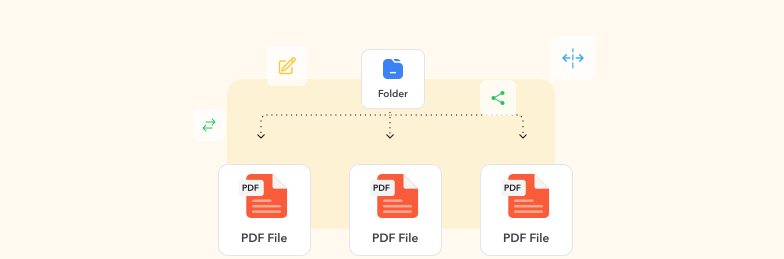
To combine documents of different types, turn each one into a PDF first, then merge the PDFs. Images can go straight into the merge.
- Convert Office files: Use Word to PDF, Excel to PDF or PowerPoint to PDF, or choose File > Save As > PDF in the Office app
- Collect everything: Put the PDFs and any JPG or PNG images in one folder
- Merge: Upload them all to the Merge PDF tool and set the order
Choosing the Page Order
- Job applications: Cover letter, resume, then certificates and work samples
- Reports and proposals: Summary first, main document next, appendices and supporting files last
- Records and receipts: Chronological order, so the newest is easy to find at the end
Tip: Number the files before uploading (01-cover.pdf, 02-resume.pdf…) so they sort into the right order straight away.
Troubleshooting Common Merging Issues
Even experienced users encounter challenges when combining PDFs. Understanding these common issues and their solutions will help you achieve consistent, professional results.
File Compatibility Problems
Issue: Some PDFs won't merge or cause errors during processing.
Solutions:
- Update your PDF software to the latest version
- Try converting problematic files to a newer PDF format
- Check for password protection: unlock protected PDFs before merging
- Verify that files aren't corrupted by opening them individually
Large File Performance Issues
Issue: Merging process is slow or fails with large documents.
Solutions:
- Compress individual PDFs before merging
- Process files in smaller batches
- Close other applications to free up system resources
- Consider using desktop software instead of online tools
Formatting and Layout Problems
Issue: Merged document has inconsistent formatting or layout issues.
Solutions:
- Ensure all source PDFs use similar page sizes
- Check that fonts are embedded in the original documents
- Verify color profiles match across all files
- Use professional software for complex document structures
Merge PDFs Without Issues
Combine PDFs and images into one file, in the order you choose, right in your browser.
Try Profi PDF MergerTry Our PDF Editing Tool Now
Edit text, add signatures, convert, highlight content, and make quick changes to any PDF.
Start Merging Now 4.61,340 ביקורות4.513,920 ביקורות4.64,550 ביקורות
מאמרים קשורים
גלו עוד טיפים, כלים ומדריכים שיעזרו לכם לעבוד חכם יותר עם קובצי PDF.
How to Translate Text and Slides in PowerPoint Easily
Master the art of translating PowerPoint presentations effortlessly. Learn proven methods to convert slides and text into multiple languages while maintaining formatting and professional quality.
How to Remove Password from a PDF File - Complete Unlock Guide
Remove the password from a PDF you can open: online, in Chrome, in Preview on a Mac, on iPhone and Android, or with the free qpdf command.

How to Convert PDF to PNG Online - Complete Guide for High-Quality Image Conversion
Transform PDF documents into high-quality PNG images with our comprehensive guide. Learn professional methods, best practices, and expert tips for perfect PDF to PNG conversions online.