How to Compress PDF to 1MB or Less - Free Methods That Actually Work
 Author: Michael Chen
Content
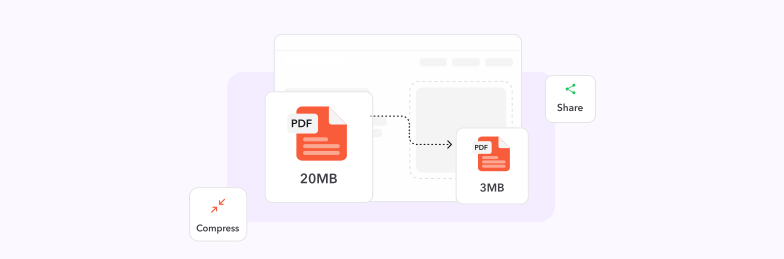
To get a PDF under 1MB, run it through a compressor at a strong setting, then check the size:
- Open the Profi PDF PDF compressor.
- Upload your PDF.
- Pick a compression level. The strongest level gives the smallest file.
- Download the result and check its size.
Still over 1MB? Most of a PDF's size is images, so the fixes are fewer pages, lower-resolution scans, or grayscale instead of color. The troubleshooting section below goes through each one.
Why Compress PDFs to 1MB or Smaller?
Understanding the need for PDF compression helps you choose the right approach for your specific situation. Many online platforms impose strict file size limits that can prevent you from uploading essential documents.
Common Upload Restrictions You'll Encounter
- Job application portals: Some limit resumes and portfolios to 1MB or 2MB
- University admissions: Some cap each uploaded transcript or essay at a few MB
- Government websites: Online application forms often have a per-file limit, sometimes as low as 1MB
- Email attachments: Gmail and Outlook accept up to 20–25MB, but a smaller file sends and opens faster, and some company mail servers set lower limits
Benefits Beyond Meeting Size Requirements
- Faster upload speeds: Smaller files transfer quickly even on slow connections
- Reduced storage costs: Compressed files take up less cloud storage space
- Improved sharing: Recipients can download and open files more easily
- Better organization: Compact file libraries are easier to manage and navigate
Pro tip: Compressing PDFs doesn't just solve immediate size problems—it creates more efficient workflows for long-term document management.
Understanding PDF Compression: Quality vs. Size Balance
Successful PDF compression requires understanding the trade-offs between file size reduction and quality preservation. Different compression levels serve different purposes, and choosing the right approach ensures optimal results.
Types of PDF Compression Available
- Lossless compression: Reduces file size without any quality degradation, ideal for text-heavy documents
- Basic compression: Provides moderate size reduction while maintaining visual quality for most users
- Aggressive compression: Achieves maximum size reduction but may introduce slight quality changes
- Custom compression: Allows fine-tuning of specific elements like images, fonts, and graphics
Factors That Affect Compression Results
- Document content type: Text-only files compress more efficiently than image-heavy documents
- Image resolution: High-resolution photos and graphics consume more space
- Font embedding: Documents with many embedded fonts tend to be larger
- Original file creation: Scanned documents typically offer more compression potential
Remember: The goal is finding the sweet spot where your PDF meets size requirements while remaining clear and professional for your intended audience.
Method 1: Professional PDF Compression with Profi PDF
Profi PDF offers industry-leading compression technology that delivers optimal file size reduction while preserving document integrity:
- Open the compressor: Go to the Profi PDF PDF compressor
- Upload your document: Drag and drop your PDF file or browse to select it
- Choose compression level: Pick a stronger level for a smaller file, a lighter one to keep more image detail
- Download compressed file: Get your optimized PDF and check that it's under your limit
Advanced Features That Set Profi PDF Apart
- Smart compression algorithms: Automatically optimizes different content types for best results
- Quality preview: See exactly how compression affects your document before committing
- Batch processing: Compress multiple PDFs simultaneously to save time
- Security first: All files are processed securely and deleted after compression
- No installation required: Works directly in your browser without software downloads
Best for: Professional documents, important submissions, and situations where quality cannot be compromised.
Compress Your PDFs to Perfect Size
Transform oversized PDFs into perfectly compressed 1MB files while maintaining professional quality. Fast, secure, and reliable compression technology.
Start Compressing



Method 2: Built-in macOS Preview Compression
Mac users can leverage the built-in Preview application for quick PDF compression without needing additional software:
- Open in Preview: Double-click your PDF file to launch it in Preview
- Access export options: Go to File menu and select "Export"
- Choose PDF format: Ensure PDF is selected as the output format
- Adjust quality settings: Use the "Quartz Filter" dropdown to select compression level
- Select "Reduce File Size": This option provides automatic compression optimization
- Save compressed version: Choose a new filename and location for your compressed PDF
Preview Compression Capabilities
- Quick processing: Instant compression for immediate results
- No internet required: Works entirely offline on your Mac
- Free solution: No additional cost beyond macOS
- Simple interface: Straightforward options suitable for basic needs
Limitations to consider: Preview's compression options are limited compared to professional tools, and results may vary significantly depending on document content.
Advanced Compression Strategies for Specific Document Types
Different types of PDFs require tailored compression approaches to achieve optimal results. Understanding these strategies helps you compress any document effectively while maintaining the quality that matters most.
Text-Heavy Documents (Reports, Articles, Contracts)
- Font optimization: Remove unnecessary font subsets and use standard fonts when possible
- Image compression: Reduce embedded image quality where visual details aren't critical
- Metadata removal: Clean up document properties and hidden content
- Page optimization: Remove blank pages and unnecessary whitespace
Image-Rich Documents (Portfolios, Presentations, Catalogs)
- Image resolution adjustment: Lower DPI for screen viewing while maintaining print quality
- Color space optimization: Convert to appropriate color profiles for intended use
- Compression balancing: Use different compression levels for different image types
- Format consideration: Choose optimal image formats within the PDF structure
Scanned Documents (Forms, Receipts, Historical Papers)
- Lower scan resolution: 150–200 DPI is enough for readable text; 600 DPI scans are several times larger
- Skip OCR if size is the goal: OCR adds a text layer, so it makes a scan slightly larger, not smaller
- Background removal: Clean up document backgrounds to reduce noise
- Grayscale conversion: Convert color scans to grayscale when color isn't necessary
Get Professional Compression Results
Skip the guesswork and get perfectly compressed PDFs every time. Profi PDF handles all document types with intelligent optimization.
Try Advanced CompressionTroubleshooting Common Compression Issues
Even with the best tools and techniques, you might encounter challenges when compressing PDFs. These solutions address the most common problems users face during the compression process:
When Compression Doesn't Achieve Desired Size
- Use the strongest level: Compressing the same file twice at the same level rarely shrinks it further
- Drop pages you don't need: Remove blank, duplicate or appendix pages, or split the PDF and upload it in parts if the portal allows several files
- Rescan in grayscale: A color scan of a black-and-white document is much larger than it needs to be
- Rescan at lower resolution: 150–200 DPI keeps text readable at a fraction of the size of a 300–600 DPI scan
Quality Loss Prevention Strategies
- Before-and-after comparison: Always review compressed files against originals
- Print testing: Verify that compressed documents print acceptably
- Text readability check: Ensure all text remains clear and legible
- Image quality assessment: Confirm that important visual elements aren't degraded
When to Choose Different Approaches
- For critical documents: Use conservative compression to preserve all details
- For internal use: More aggressive compression may be acceptable
- For archival purposes: Balance compression with long-term accessibility
- For specific platforms: Tailor compression to destination requirements
Final advice: Start with moderate compression settings and adjust based on results. It's easier to compress more aggressively if needed than to recover lost quality from over-compression.
Try Our PDF Editing Tool Now
Edit text, add signatures, convert, highlight content, and make quick changes to any PDF.
Start Compressing 4.61,340 reviews4.513,920 reviews4.64,550 reviews
Related articles
Explore more tips, tools and guides to help you work smarter with PDFs.
Transform JPG Images to Editable Word Documents - Free Online Guide
Discover how to convert JPG images into fully editable Word documents using our free online converter. Complete guide with OCR technology, tips for better results, and step-by-step instructions.

How to Convert PDF to SVG: 4 Convenient Ways
Transform your PDF files into scalable SVG vectors with these 4 proven conversion methods. From professional tools to free alternatives, discover the best approach for your design workflow.
How to Convert HEIC to JPG on Windows
Learn how to convert HEIC files to JPG format on Windows with our comprehensive guide. Discover multiple methods including online tools, built-in apps, and software solutions for seamless image conversion.