How to Convert a PPTX to PDF Online: Complete Guide
 Author: Michael Chen
Content
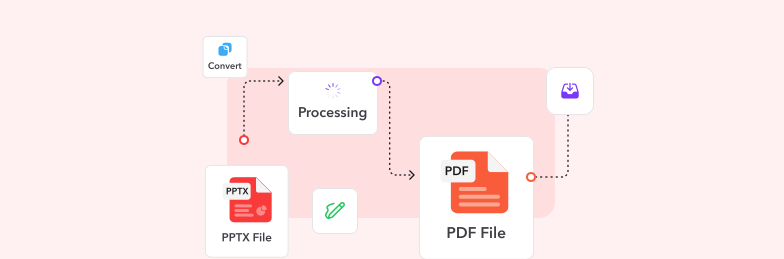
To turn a PowerPoint presentation into a PDF:
- Open the Profi PDF PPTX to PDF converter.
- Upload your .pptx file.
- Download the PDF.
If you have PowerPoint or Google Slides, you can also export a PDF from there; the menu paths are below. Keep in mind that a PDF is a static copy: animations, transitions and embedded video don't carry over.
Why Convert PowerPoint to PDF Format?
Understanding the strategic advantages of PDF conversion helps you make informed decisions about when and how to transform your presentations for maximum impact.
Universal Device Compatibility
PDF files open seamlessly on any device or operating system, eliminating concerns about software compatibility issues. Your presentation appears identical whether viewed on Windows, Mac, mobile devices, or web browsers, ensuring consistent experience for all recipients.
Format Protection and Security
- Layout preservation: Fonts, images, and formatting remain exactly as designed
- Content security: Prevent unauthorized editing or content modification
- Password protection: Add security layers to sensitive presentations
- Digital signatures: Verify document authenticity and integrity
Professional Presentation Standards
PDF format conveys professionalism and reliability, making it the preferred choice for business communications, investor presentations, and formal documentation. The format ensures your content appears polished and maintains credibility across all viewing scenarios.
Optimized File Sharing
PDF compression techniques reduce file sizes significantly while preserving visual quality, enabling faster email transmission and easier cloud storage. This optimization proves invaluable for large presentations or bandwidth-limited environments.
Professional PPTX to PDF Conversion with Profi PDF

Profi PDF offers industry-leading conversion technology that transforms PowerPoint presentations into high-quality PDF documents while preserving every design element:
- Open the converter: Go to the Profi PDF PPTX to PDF converter
- Upload your presentation: Drag and drop your PowerPoint file or browse to select it
- Configure settings: Choose quality options and compression preferences
- Initiate conversion: Process your file with advanced algorithms
- Download PDF: Receive your professionally converted document instantly
Advanced Conversion Features
- High-fidelity rendering: Each slide becomes a page that looks like the slide; animations and transitions aren't kept, because a PDF can't play them
- Font embedding: Ensures text appears correctly across all viewing platforms
- Image optimization: Maintains visual quality while optimizing file size
- Batch processing: Convert multiple presentations simultaneously
- Custom settings: Adjust quality, compression, and security options
Perfect for: Business presentations, academic materials, marketing documents, and any scenario requiring professional PDF output.
Convert PowerPoint to PDF Instantly
Transform your PPTX presentations into professional PDF documents with perfect formatting preservation. Fast, secure, and reliable conversion in seconds.
Start Converting Now



Alternative Conversion Methods
While Profi PDF provides the most reliable solution, understanding alternative approaches helps you choose the best method for specific situations.
Microsoft PowerPoint Built-in Export
If you have PowerPoint installed, it can save a PDF itself:
- Windows: File > Export > Create PDF/XPS Document > Create PDF/XPS, then click Publish. "Options" lets you include speaker notes or hidden slides
- Mac: File > Export, set File Format to PDF, then click Export
Google Slides Conversion
If your presentation is in Google Slides, choose File > Download > PDF Document (.pdf). A .pptx file you upload to Google Drive can be opened in Slides first. Fonts that Google doesn't have are replaced, so check the result.
Keynote on a Mac
Keynote opens .pptx files: open the presentation, then choose File > Export To > PDF.
Optimizing Your PDF Output
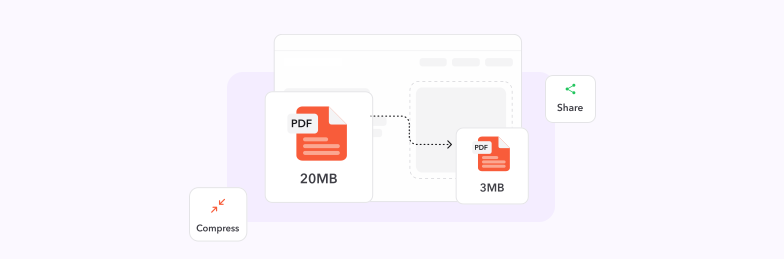
Achieving the perfect balance between file size and visual quality requires understanding optimization techniques that enhance your PDF's performance and accessibility.
Image Quality Management
- Resolution optimization: Use 300 DPI for print, 150 DPI for digital viewing
- Compression algorithms: Apply JPEG compression for photos, PNG for graphics
- Vector preservation: Maintain vector graphics as scalable elements
- Color space conversion: Choose RGB for digital, CMYK for print applications
Font and Text Optimization
Ensure text clarity and compatibility by embedding essential fonts while removing unused character sets. This approach maintains typography consistency while minimizing file bloat.
Content Streamlining
Remove hidden slides, unused masters, and embedded objects that don't contribute to the final presentation. This cleanup process can significantly reduce file size without affecting visual quality.
Accessibility Enhancements
- Alt text inclusion: Add descriptions for images and graphics
- Reading order: Ensure logical content flow for screen readers
- Color contrast: Verify sufficient contrast ratios for visibility
- Searchable text: Maintain text searchability in the PDF output
Troubleshooting Common Conversion Issues
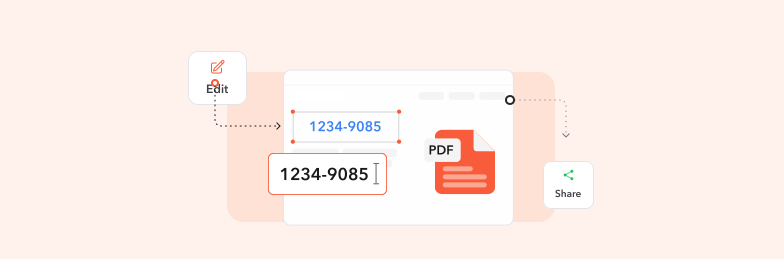
Understanding and resolving typical conversion challenges ensures consistent, high-quality results regardless of your presentation's complexity or content type.
Font Rendering Problems
When custom fonts appear incorrectly in PDFs:
- Use standard fonts: Stick to universally available typefaces
- Embed fonts: Include font files within the PDF document
- Font substitution: Choose similar alternatives for problematic fonts
- Test thoroughly: Preview on multiple devices before finalizing
Image Quality Issues
Resolve blurry or pixelated images by using high-resolution source files, avoiding excessive compression, and ensuring proper image formats (vector for logos, high-res raster for photos).
Layout Distortion
Prevent formatting problems by:
- Simplifying complex layouts: Reduce overlapping elements
- Using standard slide sizes: Stick to common aspect ratios
- Testing conversions: Verify output before final distribution
- Alternative tools: Try different converters if issues persist
File Size Concerns
Manage oversized PDFs through image compression, removing unnecessary elements, optimizing embedded media, and using appropriate quality settings for your intended use case.
Perfect Your PPTX to PDF Conversion
Experience flawless PowerPoint to PDF conversion with advanced optimization, security features, and professional-grade output quality. Try our premium converter today.
Convert with ConfidenceWhen to Choose PPTX vs PDF Format
Making informed format decisions requires understanding specific use cases where each format excels, ensuring optimal presentation delivery and audience engagement.
Optimal PDF Scenarios
- Final distribution: Completed presentations ready for sharing
- Cross-platform compatibility: Mixed device environments
- Professional communications: Client presentations, proposals, reports
- Archive purposes: Long-term document preservation
- Print preparation: Hard copy materials and handouts
- Security requirements: Protected or confidential content
Maintain PPTX Format When
- Active editing needed: Ongoing revisions and updates
- Interactive elements: Animations, transitions, embedded videos
- Collaborative work: Team editing and version control
- Speaker notes required: Presentation mode with notes
- Template reuse: Master slides and design systems
Hybrid Approach Strategy
For maximum flexibility, maintain both formats: PPTX as the working file for editing and updates, and PDF as the distribution format for sharing and presentation. This dual approach ensures you retain editing capabilities while providing professional, secure documents for stakeholders.
Pro tip: Always test your PDF conversion before important presentations or distributions to ensure all elements render correctly and meet your quality standards.
Try Our PDF Editing Tool Now
Edit text, add signatures, convert, highlight content, and make quick changes to any PDF.
Start Converting Now 4,61340 recensioni4,513.920 recensioni4,64550 recensioni
Articoli correlati
Esplora più suggerimenti, strumenti e guide per lavorare meglio con i PDF.

How to Convert PDF to PNG Online - Complete Guide for High-Quality Image Conversion
Transform PDF documents into high-quality PNG images with our comprehensive guide. Learn professional methods, best practices, and expert tips for perfect PDF to PNG conversions online.
How to Compress PDF to 1MB or Less - Free Methods That Actually Work
Learn proven techniques to compress large PDF files to 1MB or smaller without losing quality. Discover free tools, best practices, and expert tips for optimal file compression.

How to Copy Tables from PDF to Excel - Complete Step-by-Step Guide
Learn how to efficiently extract and copy tables from PDF documents to Excel spreadsheets. Discover professional methods, maintain formatting, and automate your data transfer workflow with advanced conversion tools.