How to Translate Text and Slides in PowerPoint Easily
 Author: Michael Chen
Content
To translate a whole PowerPoint presentation at once:
- Open the Profi PDF PowerPoint translator.
- Upload your .pptx or .ppt file.
- Choose the language to translate into.
- Download the translated presentation and check the slides where text got longer.
PowerPoint's own Translator works only on the text you select, one block at a time, so it suits small fixes. Both methods are below, plus how to prepare slides so the translated text still fits.
Method 1: Translate the Whole Presentation with Profi PDF
Profi PDF translates the .pptx file itself, every slide at once, and gives you back a PowerPoint file you can keep editing. There's no need to export to PDF first.
- Open the translator: Go to the Profi PDF PowerPoint translator
- Upload your presentation: Drag and drop your .pptx or .ppt file
- Choose the target language: Pick one of 95+ languages
- Download the result: Get the translated presentation with the original slide design
- Check the slides: Look for text that got longer and no longer fits its box
Best for: Business presentations, technical content, marketing materials, and any situation where translation quality directly impacts your professional reputation.
Translate Your PowerPoint
Upload a .pptx file, pick a language and download the translated presentation, ready to edit.
Translate PowerPoint



Method 2: PowerPoint's Built-in Translator
PowerPoint's Translator works on the text you select, one text box at a time. There's no command that translates a whole presentation, so it suits small fixes rather than full decks.
Translating Selected Text
- Select your text: Highlight the specific words or paragraphs you want to translate
- Open the Review tab: Click "Review" in the ribbon
- Choose Translate: The Translator pane opens on the right
- Pick the target language: Set the language you want in the pane
- Insert translation: Click "Insert" to replace the selected text with the translation
Limitations to consider: You have to repeat this for every text box, table and note, which takes a long time on a large deck. Text in charts, SmartArt and images often needs separate handling.
Preparing Your PowerPoint for Translation
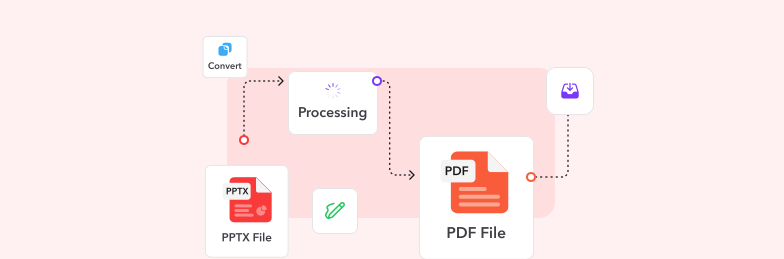
Before diving into translation, proper preparation ensures smooth conversion and better results. Taking these preliminary steps saves time and prevents formatting issues.
Technical Requirements
- Software version: Use Microsoft 365 or Office 2016+ for best translation features
- Internet connection: Cloud-based translation services require stable connectivity
- File backup: Always save a copy of your original presentation before translating
- Font compatibility: Ensure your fonts support characters in target languages
Content Preparation Checklist
- Review text content: Simplify complex phrases that may not translate well
- Check embedded images: Identify any text within images that needs separate translation
- Organize speaker notes: Decide whether notes require translation alongside slides
- Test formatting: Ensure text boxes have room for expansion (some languages use more characters)
Pro tip: Different languages require different amounts of space—German typically needs 30% more space than English, while Chinese often uses less.
Optimizing Translations for Specific Language Pairs
Different language combinations present unique challenges. Understanding language-specific considerations helps you achieve better translation results.
Common Language Pair Strategies
- English to Spanish: Watch for formal vs. informal address (tú vs. usted)
- English to French: Consider gender agreements and accent marks carefully
- English to German: Account for longer compound words and sentence structures
- English to Japanese: Be mindful of honorifics and cultural context
- English to Chinese: Simplified vs. Traditional Chinese choice matters by region
Using Profi PDF's Language-Specific Tools
For common pairs, Profi PDF has pages with both languages already set. They accept PowerPoint files as well as PDF, Word and Excel:
- English to Spanish and Spanish to English
- English to French and French to English
- English to German and German to English
- English to Japanese
Pro tip: For any other pair, use the PowerPoint translator and pick the target language yourself.
Best Practices for Translation Quality
Achieving professional translation results requires attention to detail and strategic approaches. Follow these best practices to maximize translation quality.
Pre-Translation Optimization
- Use clear language: Avoid idioms, slang, and culturally-specific references
- Keep sentences concise: Shorter sentences translate more accurately
- Maintain consistency: Use the same terms throughout for key concepts
- Remove ambiguity: Clarify pronouns and vague references before translating
Post-Translation Review
- Check formatting: Verify text boxes, alignment, and spacing remain intact
- Review accuracy: Have a native speaker verify critical sections if possible
- Test readability: Ensure translated text flows naturally in the target language
- Verify images: Confirm any text in images is also translated or localized
- Proofread thoroughly: Look for grammatical errors or awkward phrasing
Handling Special Content
- Numbers and dates: Adjust formatting to match target locale conventions
- Currency symbols: Convert or clarify monetary references appropriately
- Charts and graphs: Translate labels, legends, and axis titles
- Hyperlinks: Update links to language-specific resources when available
Translate Documents in Any Language
Translate PowerPoint, PDF, Word and Excel files into 95+ languages and keep their formatting.
Explore Translation ToolsTroubleshooting Common Translation Issues
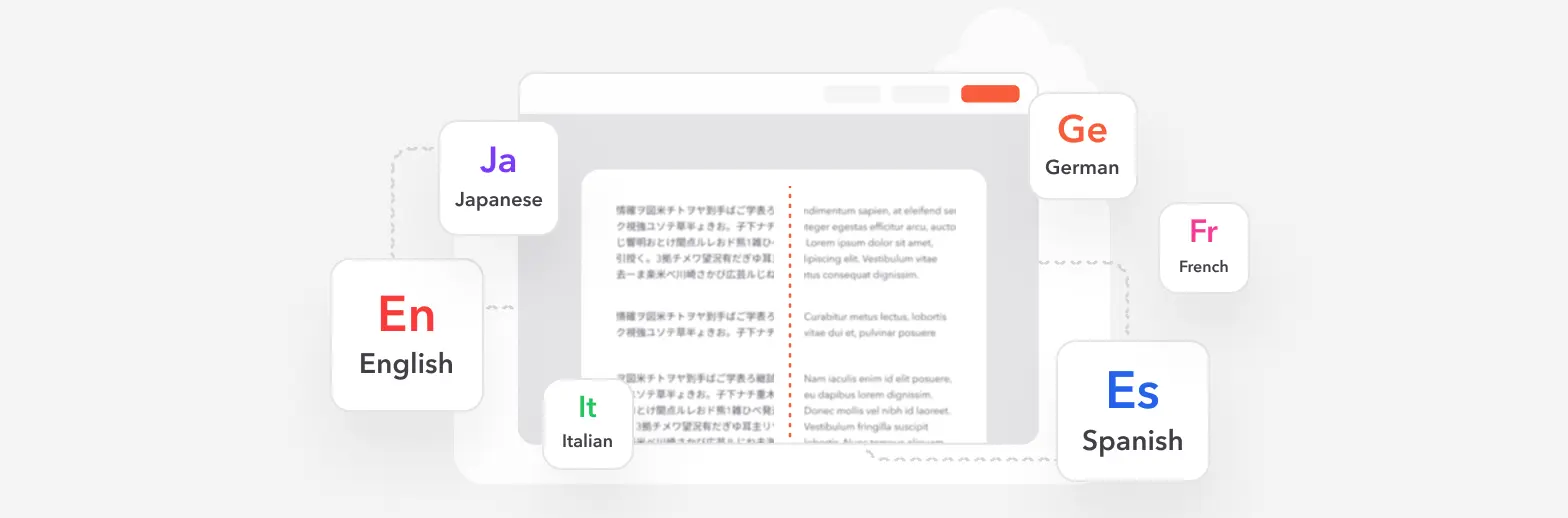
Even with the best tools, translation challenges can arise. Here's how to identify and resolve common problems quickly.
Formatting Problems
- Text overflow: Expand text boxes or reduce font size to accommodate longer translations
- Alignment issues: Manually adjust elements that shift during translation
- Font compatibility: Switch to Unicode fonts that support special characters
- Line breaks: Adjust paragraph settings to maintain visual flow
Translation Accuracy Issues
- Technical terms: Create a glossary of key terms for consistent translation
- Context errors: Provide additional context or use specialized translation tools
- Ambiguous phrases: Rewrite unclear original text before translating
- Cultural mismatches: Adapt content to be culturally appropriate for the target audience
Technical Difficulties
- Connection problems: Check internet stability for cloud-based translation
- Software limitations: Update to the latest PowerPoint version for best features
- File compatibility: Convert older presentation formats to modern .pptx
- Processing delays: For large files, consider splitting into smaller sections
Alternative approach: When translating box by box in PowerPoint takes too long, upload the whole file to the Profi PDF PowerPoint translator.
Try Our PDF Editing Tool Now
Edit text, add signatures, convert, highlight content, and make quick changes to any PDF.
Translate PowerPoint 4.61,340 件のレビュー4.513,920 件のレビュー4.64,550 件のレビュー
関連する記事
PDFをよりスマートに扱うためのヒント、ツール、ガイドをもっと探る。

How to Copy Tables from PDF to Excel - Complete Step-by-Step Guide
Learn how to efficiently extract and copy tables from PDF documents to Excel spreadsheets. Discover professional methods, maintain formatting, and automate your data transfer workflow with advanced conversion tools.
Translate Documents from French to English: Complete Professional Guide
Master the art of translating French documents to English with precision and efficiency. Discover professional methods, formatting preservation techniques, and AI-powered solutions for seamless multilingual document conversion.

How to Convert HEIC to PNG: The Ultimate Guide
Master the art of converting HEIC images to PNG format with our comprehensive guide. Discover multiple conversion methods for Mac, Windows, and online tools that preserve image quality and transparency.