


如何線上刪除 PDF 頁面
只需幾個步驟,即可快速輕鬆編輯 PDF。
1
載入 PDF. 使用上傳按鈕或檔案拖放區匯入您的文件。
2
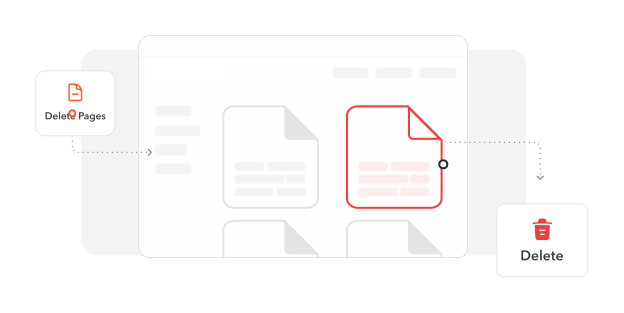
移除不需要的頁面. 選取頁面縮圖,並使用移除選項去除不必要的內容。
3
儲存精簡文件. 完成變更並取得僅包含必要頁面的精簡檔案。
深受像您一樣的使用者信賴
看看其他使用者如何使用 Profi PDF 刪除 PDF 頁面。

12月10日
易用又有效
輕鬆從我的報告中移除了不必要的頁面。簡潔的介面讓流程快速又直覺。


郭小姐
12月7日
支援出色!
能高效快速地處理我所有的 PDF 需求。客服支援非常出色,並迅速提供協助。

建宏
12月9日
令人印象深刻的品質與服務
頁面刪除流程順暢,且文件品質保留度高,令人滿意。支援團隊也提供了優秀協助。

老鄭
2580 人今天已產生 PDF 檔案
@sam***
17 分鐘前
@zoe***
17 分鐘前
@ash***
8 分鐘前
受信任並由以下保障 業界專家





為何選擇我們的工具來刪除 PDF 頁面
精簡文件結構
移除不需要的頁面,建立聚焦且專業的文件,突顯重要內容,同時縮小檔案大小以便分享。
完整文件編輯器
除了移除頁面外,還可透過新增文字、插入圖片、數位簽名與註解來強化 PDF,完整自訂文件。
維持文件卓越品質
在刪除過程中保留像素級精準品質,維持剩餘頁面的專業外觀。
簡化的使用體驗
輕鬆操作 Profi PDF 的精簡介面,無需培訓即可有效管理並修改您的 PDF 文件。
彈性匯出選項
將編輯後的文件轉換為 DOCX、PNG 或 JPEG 等多種格式,確保可在不同平台與應用程式間相容。
瀏覽器式解決方案
透過網頁瀏覽器立即使用我們的頁面刪除工具,無需安裝軟體,即可在任何地點順暢編輯。



常見問題
快速找到關於充分運用我們工具的問題解答。