Transform JPG Images to Editable Word Documents - Free Online Guide
 Author: Michael Chen
Content
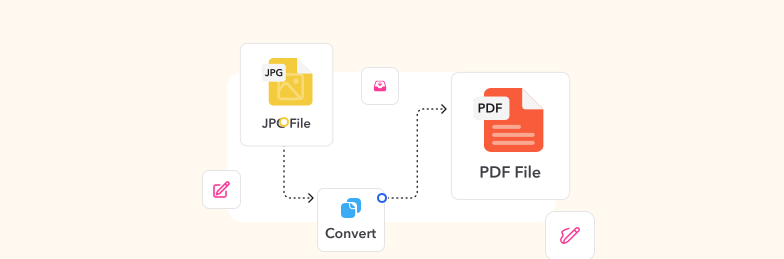
To turn a photo or screenshot of text into an editable Word document, the text has to be read with OCR:
- Open the Profi PDF JPG to Word converter.
- Upload your JPG.
- Wait while OCR recognizes the text.
- Download the .docx file and proofread it.
For PNG and other image formats, use the image to Word converter. Below: how to take photos that OCR reads well, free alternatives in OneNote and Google Docs, and fixes for garbled results.
Why Convert JPG Images to Word Documents?
Converting images to editable text documents offers numerous practical benefits for both personal and professional use. Here are the most common scenarios where JPG to Word conversion becomes essential:
Digital Documentation
- Archive physical documents: Transform old paperwork, contracts, and records into searchable digital files
- Preserve handwritten notes: Convert photos of notebooks and meeting notes into editable text
- Digitize receipts and invoices: Make expense tracking and bookkeeping more efficient
Content Repurposing
- Extract text from marketing materials: Repurpose content from flyers, brochures, and advertisements
- Convert academic resources: Transform textbook pages and research materials into editable format
- Process screenshots: Extract text from software interfaces, error messages, or web content
Professional Applications
- Legal document processing: Convert scanned contracts and legal papers for editing
- Medical record management: Digitize patient forms and medical documentation
- Educational content creation: Transform printed worksheets and assignments into editable formats
Convert Your JPG to Word Now
Transform your images into editable Word documents with our advanced OCR technology. Free, fast, and accurate conversions.
Start Converting



Step-by-Step Guide: JPG to Word Conversion

Follow these simple steps to convert your JPG images into editable Word documents using our free online converter:
- Open the converter: Go to the Profi PDF JPG to Word converter
- Upload your JPG image: Drag and drop your file or click to browse and select your image
- Let OCR run: The text in the image is recognized and laid out as a Word document
- Download your Word file: Save the converted document to your device
The entire process typically takes just 30-60 seconds depending on image size and text complexity. Our advanced OCR technology ensures high accuracy rates, even with challenging fonts or layouts.
Supported Image Formats
Our converter supports multiple image formats beyond JPG:
- JPEG and JPG files
- PNG images
- TIFF documents
- BMP files
- HEIC photos (iPhone format)
Maximize OCR Accuracy for Perfect Results

Optical Character Recognition (OCR) is the technology that reads text from images and converts it into editable format. Follow these expert tips to achieve the best possible conversion results:
Image Quality Optimization
- Use high resolution: Images should be at least 300 DPI for optimal text recognition
- Ensure good lighting: Well-lit photos with minimal shadows produce better results
- Keep images straight: Avoid skewed or rotated text that can confuse OCR algorithms
- Maintain sharp focus: Blurry text significantly reduces recognition accuracy
Text and Layout Considerations
- Clean backgrounds: Solid, contrasting backgrounds help separate text from noise
- Standard fonts: Common typefaces like Arial, Times New Roman work better than decorative fonts
- Adequate text size: Very small text (below 10pt) may not be recognized accurately
- Clear contrast: Dark text on light backgrounds (or vice versa) improves recognition
Pro Tip: If your original image has poor quality, try enhancing it with basic photo editing tools before conversion. Adjusting brightness, contrast, and sharpness can dramatically improve OCR results.
Advanced Conversion Techniques and Alternatives

While our online converter offers the most straightforward solution, there are several alternative methods you can use depending on your specific needs and available tools:
Built-in Software Solutions
Microsoft OneNote Method:
- Insert your image into a OneNote page
- Right-click the image and select "Copy Text from Picture"
- Paste the extracted text into a Word document
- Format and edit as needed
Google Docs OCR:
- Upload your image to Google Drive
- Right-click and open with Google Docs
- Google automatically extracts text using OCR
- Export the document as a Word file
Mobile App Solutions
For on-the-go conversions, consider using mobile scanning apps that offer:
- Document scanning: Capture high-quality images optimized for OCR
- Auto-enhancement: Automatic image correction for better text recognition
- Batch processing: Convert multiple images simultaneously
- Cloud integration: Direct upload to cloud storage services
Try Our Professional Converter
Experience the difference with our advanced OCR technology. Convert JPG images to Word documents with industry-leading accuracy.
Convert NowTroubleshooting Common Conversion Issues

Even with the best tools and techniques, you might encounter challenges during JPG to Word conversion. Here's how to resolve the most common issues:
Poor Text Recognition
Problem: OCR fails to recognize text or produces gibberish output.
Solutions:
- Increase image resolution before conversion
- Adjust brightness and contrast to improve text visibility
- Crop the image to focus on text areas only
- Try converting in smaller sections for complex layouts
Formatting Issues
Problem: Converted text loses original formatting or appears jumbled.
Solutions:
- Use images with clear column separation
- Convert tables and complex layouts separately
- Manually adjust paragraph breaks and spacing after conversion
- Consider using specialized table recognition features
Incomplete Text Extraction
Problem: Some text is missing from the converted document.
Solutions:
- Ensure all text areas have sufficient contrast
- Check for text hidden by shadows or poor lighting
- Try different OCR engines or tools
- Manually add missing text after conversion
Remember: OCR technology continues to improve, but manual review and editing are often necessary for perfect results, especially with complex documents or unusual fonts.
Try Our PDF Editing Tool Now
Edit text, add signatures, convert, highlight content, and make quick changes to any PDF.
Start Converting 4,61340 recensioni4,513.920 recensioni4,64550 recensioni
Articoli correlati
Esplora più suggerimenti, strumenti e guide per lavorare meglio con i PDF.

How to Convert HEIC to PNG: The Ultimate Guide
Master the art of converting HEIC images to PNG format with our comprehensive guide. Discover multiple conversion methods for Mac, Windows, and online tools that preserve image quality and transparency.
How to Edit a PDF? Solutions to Common Issues
Struggling to edit your PDF files? Discover practical solutions to overcome common PDF editing challenges, from password protection to scanned documents. Learn professional techniques that work.
How to Convert a PPTX to PDF Online: Complete Guide
Master the art of converting PowerPoint presentations to PDF format online. Discover professional methods, optimization techniques, and expert tips for seamless document sharing and preservation.