How To Convert a Scanned PDF to Word Online - Complete Guide
 Author: Michael Chen
Content

A scanned PDF is a picture of a page, so Word can't edit it until the text is recognized with OCR (optical character recognition). The quickest way:
- Open the Profi PDF scanned PDF to Word converter.
- Upload your scanned PDF.
- Wait while OCR reads the text and rebuilds the pages as a Word document.
- Download the .docx file and check it against the original.
Below: how to do the same in Microsoft Word, how to get cleaner scans, and how to fix common OCR errors. If you only need the scan to be searchable, not editable, see how to make a scanned PDF searchable.
Understanding Scanned PDFs vs Regular PDFs
Before diving into conversion methods, it's crucial to understand why scanned PDFs require special treatment and how they differ from standard text-based PDFs.
What Makes Scanned PDFs Different
- Image-based content: Text appears as pictures rather than selectable characters
- No searchable text: You cannot find, copy, or edit any content directly
- Larger file sizes: Images typically consume more storage space than text
- Quality dependent: Conversion success depends on scan clarity and resolution
Common Sources of Scanned PDFs
- Document scanners: Office equipment that digitizes physical papers
- Mobile scanning apps: Smartphone applications that photograph documents
- Fax machines: Traditional fax systems that create image-based outputs
- Photocopied documents: Multiple generation copies that lose text data
Key insight: OCR technology bridges the gap by analyzing image patterns and recreating them as editable text, making previously locked content fully accessible.
Method 1: Professional OCR Conversion with Profi PDF
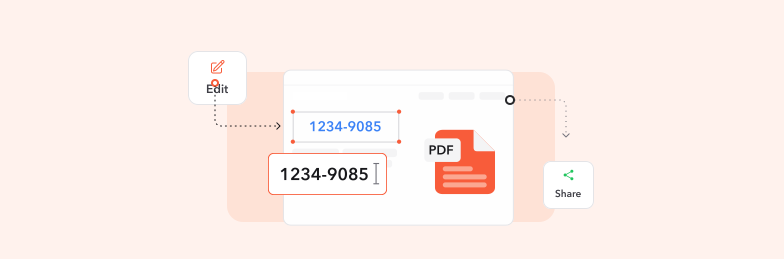
Profi PDF provides state-of-the-art OCR technology that delivers exceptional accuracy for scanned PDF to Word conversions:
- Open the converter: Go to the Profi PDF scanned PDF to Word converter
- Upload your scanned document: Drag and drop or browse to select your PDF file
- Let OCR run: The text on each page is recognized and rebuilt as Word paragraphs
- Download editable Word file: Get your converted .docx document
Advanced OCR Features
- Multi-language support: Recognizes text in dozens of languages accurately
- Layout preservation: Maintains original formatting, tables, and structure
- Image handling: Preserves charts, diagrams, and pictures within the document
- Font recognition: Attempts to match original fonts and styling
- Quality optimization: Automatically enhances scan quality for better recognition
Best for: Professional documents, complex layouts, and situations requiring high accuracy and formatting preservation.
Convert Your Scanned PDFs to Word
Transform any scanned PDF into a fully editable Word document using advanced OCR technology. Preserve formatting, maintain quality, and unlock your content.
Start Converting Now



Method 2: Using Microsoft Word's Built-in OCR
Microsoft Word includes basic OCR functionality that can handle simple scanned documents, though with limitations compared to specialized tools:
- Launch Microsoft Word: Open the application on your computer
- Access file menu: Click "File" then select "Open"
- Browse for PDF: Navigate to your scanned PDF file location
- Change file filter: Select "All Files" or "PDF Files" to see PDF options
- Confirm conversion: Word will display a conversion warning dialog
- Accept processing: Click "OK" to begin the import process
- Save as Word document: Use "Save As" to create a .docx file
Microsoft Word OCR Capabilities
- No additional cost: Included with Microsoft Office subscriptions
- Offline processing: Works without internet connection
- Familiar interface: Uses the Word environment you already know
- Immediate editing: Start modifying content right after conversion
Limitations to Consider
- Basic OCR engine: Less sophisticated than specialized tools
- Layout issues: May struggle with complex formatting and tables
- Language limitations: Limited multi-language recognition support
- Quality dependency: Requires high-quality, clear scans for best results
Important note: Word's OCR works best with simple, text-heavy documents and may require significant manual cleanup for complex layouts.
Method 3: Google Docs (Free)
If you have a Google account, Google Drive can run OCR on a scanned PDF for free. It keeps the text but drops most of the layout:
- Upload to Drive: Add the scanned PDF to Google Drive
- Open with Google Docs: Right-click the file and choose "Open with" > "Google Docs"
- Check the text: The recognized text appears below an image of each page
- Download as Word: Choose File > Download > Microsoft Word (.docx)
Good to know: Tables, columns and fonts are usually lost, so this suits short, plain-text documents best.
Optimizing Scanned PDFs for Better OCR Results
The quality of your OCR conversion depends heavily on the original scan quality and document preparation. Follow these optimization strategies for superior results:
Pre-Conversion Document Preparation
- Scan at high resolution: Use 300 DPI or higher for text recognition
- Ensure proper lighting: Avoid shadows and uneven illumination
- Straighten document pages: Align text horizontally for better recognition
- Clean document surface: Remove dust, marks, and smudges before scanning
- Use appropriate contrast: Ensure clear distinction between text and background
Digital Enhancement Techniques
- Brightness adjustment: Optimize contrast for clearer text visibility
- Noise reduction: Remove digital artifacts and scanning imperfections
- Rotation correction: Fix slightly tilted pages for better alignment
- Cropping borders: Remove unnecessary margins and background elements
Best Practices for Different Document Types
- Text documents: Use black and white scanning mode for optimal contrast
- Forms and tables: Ensure grid lines are clear and well-defined
- Mixed content: Balance settings for both text and image elements
- Handwritten notes: Use higher resolution and grayscale mode
Pro tip: Spending extra time on document preparation often saves hours of manual correction after OCR conversion.
Troubleshooting Common OCR Conversion Issues
Even with advanced OCR technology, certain challenges can affect conversion quality. Understanding these issues and their solutions ensures successful document transformation:
Text Recognition Problems
- Garbled characters: Usually caused by poor scan quality or unusual fonts
Solution: Re-scan at higher resolution or manually correct affected sections - Missing text blocks: OCR may skip faint or low-contrast text
Solution: Enhance contrast in image editing software before conversion - Incorrect character substitution: Similar-looking letters may be confused
Solution: Use spell-check and manual review to catch common errors
Formatting and Layout Issues
- Lost table structure: Complex tables may convert as plain text
Solution: Use specialized OCR tools with advanced table recognition - Misaligned columns: Multi-column layouts may merge incorrectly
Solution: Process individual columns separately or use column-aware OCR - Header and footer problems: Repeated elements may appear inconsistently
Solution: Manually recreate headers/footers in Word after conversion
File Size and Performance Considerations
- Large file processing: Very large PDFs may timeout or fail
Solution: Split the PDF into smaller parts and convert them one at a time - Memory limitations: Complex documents may overwhelm system resources
Solution: Close other applications and use professional OCR services
Remember: No OCR system is 100% accurate. Always review and proofread converted documents before final use.
Try Our PDF Editing Tool Now
Edit text, add signatures, convert, highlight content, and make quick changes to any PDF.
Start Converting Now 4.61,340 reviews4.513,920 reviews4.64,550 reviews
Related articles
Explore more tips, tools and guides to help you work smarter with PDFs.
How to Remove Password from a PDF File - Complete Unlock Guide
Remove the password from a PDF you can open: online, in Chrome, in Preview on a Mac, on iPhone and Android, or with the free qpdf command.

How to Copy Tables from PDF to Excel - Complete Step-by-Step Guide
Learn how to efficiently extract and copy tables from PDF documents to Excel spreadsheets. Discover professional methods, maintain formatting, and automate your data transfer workflow with advanced conversion tools.

How to Convert HEIC to JPG on Windows
Learn how to convert HEIC files to JPG format on Windows with our comprehensive guide. Discover multiple methods including online tools, built-in apps, and software solutions for seamless image conversion.