How to Convert PNG to PDF Online
 Author: Michael Chen
Content

To turn a PNG image into a PDF:
- Open the Profi PDF PNG to PDF converter.
- Upload your PNG.
- Download the PDF.
To put several images into one PDF, add them to the Merge PDF tool instead. JPG photos work the same way with JPG to PDF. Below: how to prepare images for sharp output and how to fix common problems.
Why Convert PNG Images to PDF Format?
Understanding the advantages of converting PNG files to PDF format helps you make informed decisions about your document management strategy.
Universal Compatibility Benefits
- Cross-platform accessibility: PDFs open consistently across all devices and operating systems
- Professional presentation: PDF format maintains a polished, business-ready appearance
- Email-friendly sharing: Recipients can easily view PDFs without specialized software
- Print optimization: PDFs preserve exact formatting for accurate printing results
Document Management Advantages
- File organization: Combine multiple PNG images into single, manageable PDF documents
- Version control: PDFs provide better tracking and revision management capabilities
- Security features: Add password protection and access restrictions when needed
- Archival quality: PDF/A format ensures long-term document preservation
Professional insight: Converting PNG images to PDF format transforms scattered visual content into organized, shareable documents that meet professional standards.
Method 1: Online PNG to PDF Conversion with Profi PDF
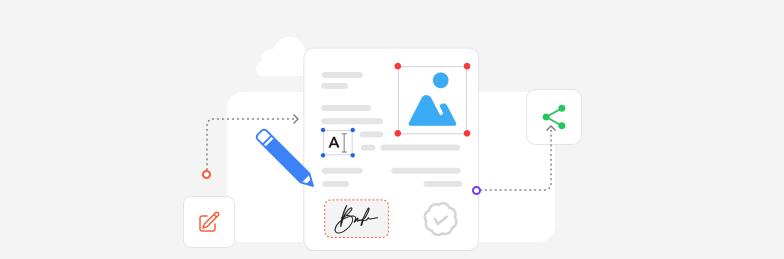
Profi PDF offers advanced PNG to PDF conversion technology that delivers exceptional quality and speed for all your image transformation needs:
- Open the converter: Go to the Profi PDF PNG to PDF converter
- Upload your PNG files: Drag and drop or browse to select single or multiple images
- Configure page settings: Choose orientation (portrait/landscape) and page size options
- Adjust image placement: Set margins, scaling, and positioning preferences
- Process conversion: Click convert to transform your images using advanced algorithms
- Download PDF result: Get your professionally formatted PDF document instantly
Advanced Conversion Features
- Batch processing: Convert multiple PNG images simultaneously for efficiency
- Quality preservation: Maintains original image clarity and color accuracy
- Custom page layouts: Multiple images per page or individual page placement
- Compression options: Balance file size with image quality based on your needs
- Metadata handling: Preserve or remove image metadata as required
Perfect for: Professional presentations, portfolio creation, document compilation, and high-volume image processing tasks.
Convert PNG Images to PDF
Transform your PNG files into professional PDF documents with advanced conversion technology. Preserve quality, customize layouts, and process multiple images efficiently.
Start Converting Now



Optimizing PNG Images Before PDF Conversion
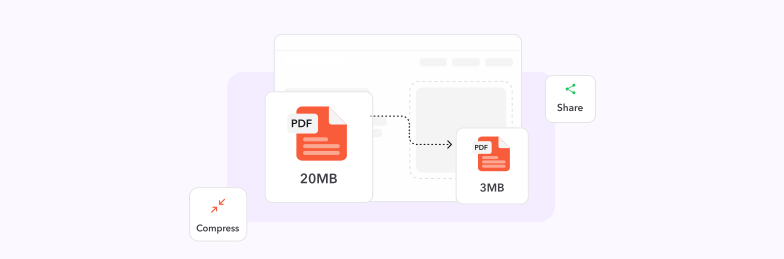
Proper image optimization before conversion ensures the best possible PDF output quality while managing file sizes effectively.
Resolution and Size Optimization
- Target resolution: Use 300 DPI for print documents, 150 DPI for digital viewing
- Image dimensions: Match your intended PDF page size to avoid scaling issues
- File size balance: Optimize PNG compression to reduce PDF bloat without quality loss
- Aspect ratio preservation: Maintain original proportions to prevent distortion
Quality Enhancement Techniques
- Color profile consistency: Ensure all images use the same color space (sRGB recommended)
- Transparency handling: Convert transparent backgrounds to white for better PDF compatibility
- Image cleanup: Remove artifacts, noise, and unwanted elements before conversion
- Contrast optimization: Adjust brightness and contrast for optimal PDF viewing
Expert tip: Pre-optimizing your PNG images results in cleaner, more professional PDF documents with consistent quality throughout.
Batch Conversion: Processing Multiple PNG Files
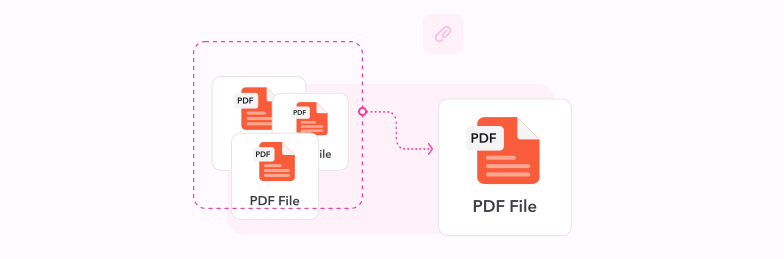
Efficient batch processing techniques save significant time when working with large collections of PNG images that need PDF conversion.
Batch Conversion Strategies
- File organization: Group related PNG images in dedicated folders before processing
- Naming conventions: Use consistent file naming to ensure proper PDF page ordering
- Size standardization: Resize images to consistent dimensions for uniform PDF appearance
- Quality settings: Apply identical compression settings across all images in the batch
Multi-Format Support
Beyond PNG conversion, Profi PDF supports comprehensive image-to-PDF transformation. Photos convert with JPG to PDF, and the Merge PDF tool combines several images into one PDF:
- JPEG conversion: Transform JPG and JPEG files with quality preservation
- Mixed format batches: Process PNG, JPG, and other formats simultaneously
- Format-specific optimization: Automatic settings adjustment based on source image type
- Unified output: Combine different image formats into single, cohesive PDF documents
Time-saving benefit: Batch processing can reduce conversion time by up to 80% compared to individual file processing.
Convert JPG Images to PDF Too
Expand your conversion capabilities with JPG to PDF transformation. Process mixed image formats and create comprehensive PDF documents from various sources.
Try JPG to PDFTroubleshooting Common PNG to PDF Conversion Issues
Addressing common conversion challenges ensures consistent, high-quality results across all your PNG to PDF transformations.
Image Quality Problems
- Blurry output: Increase source PNG resolution or adjust PDF compression settings
- Color shifts: Verify color profile consistency and use sRGB color space
- Size distortion: Check aspect ratio preservation and scaling options
- Transparency issues: Convert transparent backgrounds or specify background colors
File Size Management
- Large file sizes: Apply appropriate compression without sacrificing essential quality
- Upload limitations: Split large batches into smaller groups for processing
- Processing timeouts: Reduce image dimensions or file count per conversion session
- Memory constraints: Optimize PNG files before conversion to prevent system overload
Solution approach: Systematic troubleshooting of conversion issues leads to consistently superior PDF output quality and user satisfaction.
Try Our PDF Editing Tool Now
Edit text, add signatures, convert, highlight content, and make quick changes to any PDF.
Start Converting Now 4.61,340 reviews4.513,920 reviews4.64,550 reviews
Related articles
Explore more tips, tools and guides to help you work smarter with PDFs.
How to Merge PDF Files and Combine Images into One PDF
Merge several PDFs, or PDFs and images, into one file. Step-by-step online, in Preview on a Mac and on Windows, plus how to include Word files and fix common merge problems.

How to Convert PDF to PNG Online - Complete Guide for High-Quality Image Conversion
Transform PDF documents into high-quality PNG images with our comprehensive guide. Learn professional methods, best practices, and expert tips for perfect PDF to PNG conversions online.
How to Compress PDF to 1MB or Less - Free Methods That Actually Work
Learn proven techniques to compress large PDF files to 1MB or smaller without losing quality. Discover free tools, best practices, and expert tips for optimal file compression.