How to Convert a PDF to a Word Document
 Author: Michael Chen
Content

To turn a PDF into an editable Word document:
- Open the Profi PDF PDF to Word converter.
- Upload your PDF.
- Download the .docx file and open it in Word.
This works best for PDFs made on a computer, where you can already select the text. If your PDF is a scan or a photo of paper, follow the guide to converting a scanned PDF to Word instead. Below you'll also find how to convert in Microsoft Word and Google Docs, and how to fix formatting afterwards.
Why Convert PDFs to Word Documents?

PDF files are excellent for preserving document formatting and ensuring consistent viewing across devices, but they have limitations when it comes to editing. Converting PDFs to Word format unlocks several key advantages:
- Full Editing Capabilities: Modify text, adjust formatting, and restructure content freely
- Enhanced Collaboration: Share editable documents with team members for real-time collaboration
- Content Repurposing: Extract and reuse content for presentations, reports, or other documents
- Accessibility Improvements: Make documents more accessible with screen readers and assistive technologies
- Version Control: Track changes and manage document revisions more effectively
Understanding when and why to convert PDFs helps you choose the most appropriate method for your specific needs.
Method 1: Converting Standard PDFs to Word

For text-based PDFs created from Word processors or other applications, the conversion process is straightforward and typically yields excellent results.
Step-by-Step Process:
- Open the Converter: Go to the Profi PDF PDF to Word converter
- Upload Your Document: Drag and drop your PDF file or click to browse
- Download Results: Receive your converted .docx file, with text, tables and images in place
This method works exceptionally well for documents with standard text, tables, and basic graphics. The entire process typically takes less than 30 seconds for most document sizes.
Convert PDF to Word Instantly
Transform your PDF documents into editable Word files with our professional conversion tool. Maintain formatting and quality with just a few clicks.
Start Converting Now



Method 2: Open the PDF in Microsoft Word

Word 2013 and later can open a PDF directly and turn it into an editable document:
- Open Word: Choose File > Open
- Pick the PDF: Browse to the PDF and open it
- Confirm: Word warns that it will convert the PDF and that the result may not look exactly like the original. Click OK
- Save as .docx: Use File > Save As to keep an editable copy
This works well for simple, text-heavy documents. Pages with columns, text boxes or complex tables often shift.
Method 3: Google Docs (Free)
With a Google account you can convert for free in Google Drive, though most of the layout is lost:
- Upload to Drive: Add the PDF to Google Drive
- Open with Google Docs: Right-click it and choose "Open with" > "Google Docs"
- Download as Word: Choose File > Download > Microsoft Word (.docx)
Is your PDF a scan? If you can't select the text in it, it's an image of a page and needs OCR first. Follow the guide to converting a scanned PDF to Word, or use the scanned PDF to Word converter directly.
Convert a Scanned PDF to Word
Turn scanned PDFs and image-based documents into editable Word files with OCR.
Convert Scanned PDFPreserving Formatting and Quality
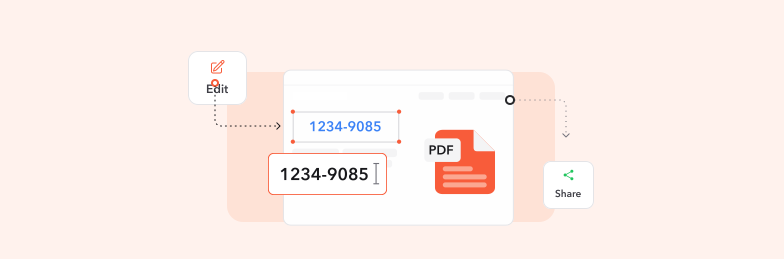
Maintaining document integrity during conversion is crucial for professional results. Our conversion technology employs several techniques to preserve your document's original appearance:
Formatting Preservation Features:
- Font Recognition: Maintains original typefaces or substitutes with similar alternatives
- Layout Integrity: Preserves column structures, spacing, and alignment
- Image Handling: Retains graphics, charts, and images in their original positions
- Table Structure: Maintains complex table layouts and formatting
- Header/Footer Elements: Preserves page numbering and document headers
Quality Assurance Tips:
After conversion, always review your Word document for accuracy. Pay special attention to tables, special characters, and formatting elements. Minor adjustments may be needed for complex layouts, but the majority of content should transfer seamlessly.
Troubleshooting Common Issues

While PDF to Word conversion is generally reliable, certain challenges may arise depending on your document's complexity and origin. Here's how to address common issues:
Common Problems and Solutions:
- Formatting Inconsistencies: Use Word's format painter tool to standardize styling across sections
- Image Displacement: Manually reposition images and adjust text wrapping settings
- Table Misalignment: Recreate complex tables using Word's table tools for better control
- Font Substitution: Replace substituted fonts with your preferred alternatives
- OCR Errors: Manually correct text recognition mistakes in scanned documents
Prevention Strategies:
To minimize conversion issues, start with high-quality source PDFs when possible. Documents created directly from word processors typically convert more accurately than scanned or image-based files. When working with scanned content, ensure optimal scan quality for best results.
Try Our PDF Editing Tool Now
Edit text, add signatures, convert, highlight content, and make quick changes to any PDF.
Start Converting Now 4.61,340 reviews4.513,920 reviews4.64,550 reviews
Related articles
Explore more tips, tools and guides to help you work smarter with PDFs.
How To Convert a Scanned PDF to Word Online - Complete Guide
Transform scanned PDF documents into fully editable Word files using advanced OCR technology. Learn the best methods, troubleshooting tips, and professional solutions for perfect conversions.
How to Remove Password from a PDF File - Complete Unlock Guide
Remove the password from a PDF you can open: online, in Chrome, in Preview on a Mac, on iPhone and Android, or with the free qpdf command.
How to Extract and Copy Text from PDF Documents - Complete Guide
Discover multiple methods to copy text from PDFs, including solutions for scanned documents and image-based files. Learn OCR techniques, troubleshooting tips, and free tools.